Windows Server 安装 Windows Store
前言
有的时候我们需要用到 Winget
但是 Winget 需要我们前置安装 Microsoft Store
所以我们来为 Windows Server 安装一下 Store
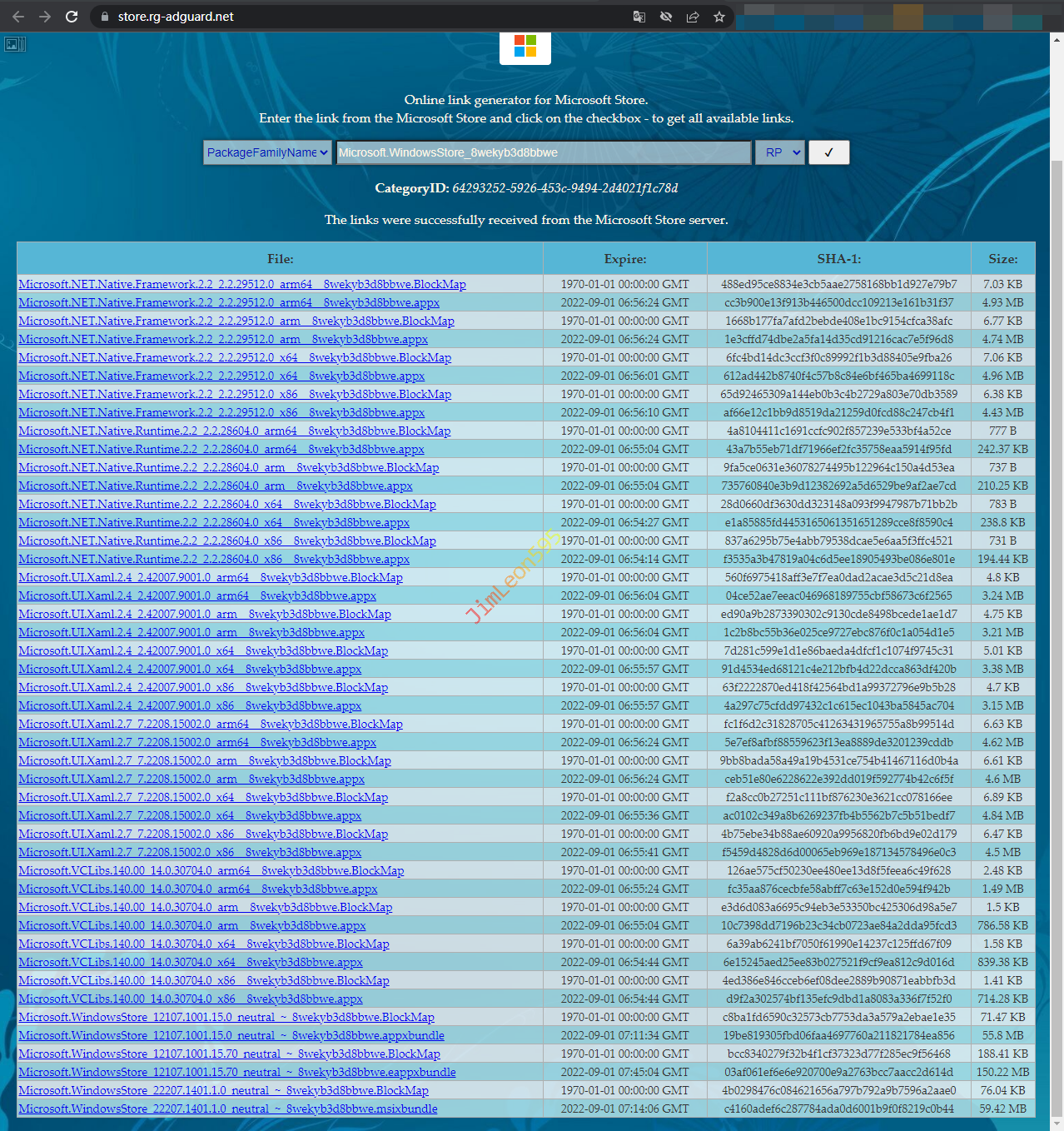
下载 Microsoft Store 安装包
我们先打开获取 Microsoft 软件包依赖的网站
1 | https://store.rg-adguard.net |
使用 PackageFamilyName 方式
搜索 Microsoft.WindowsStore_8wekyb3d8bbwe
根据系统选择对应的每一个软件包(*.appx)
安装 Microsoft Store
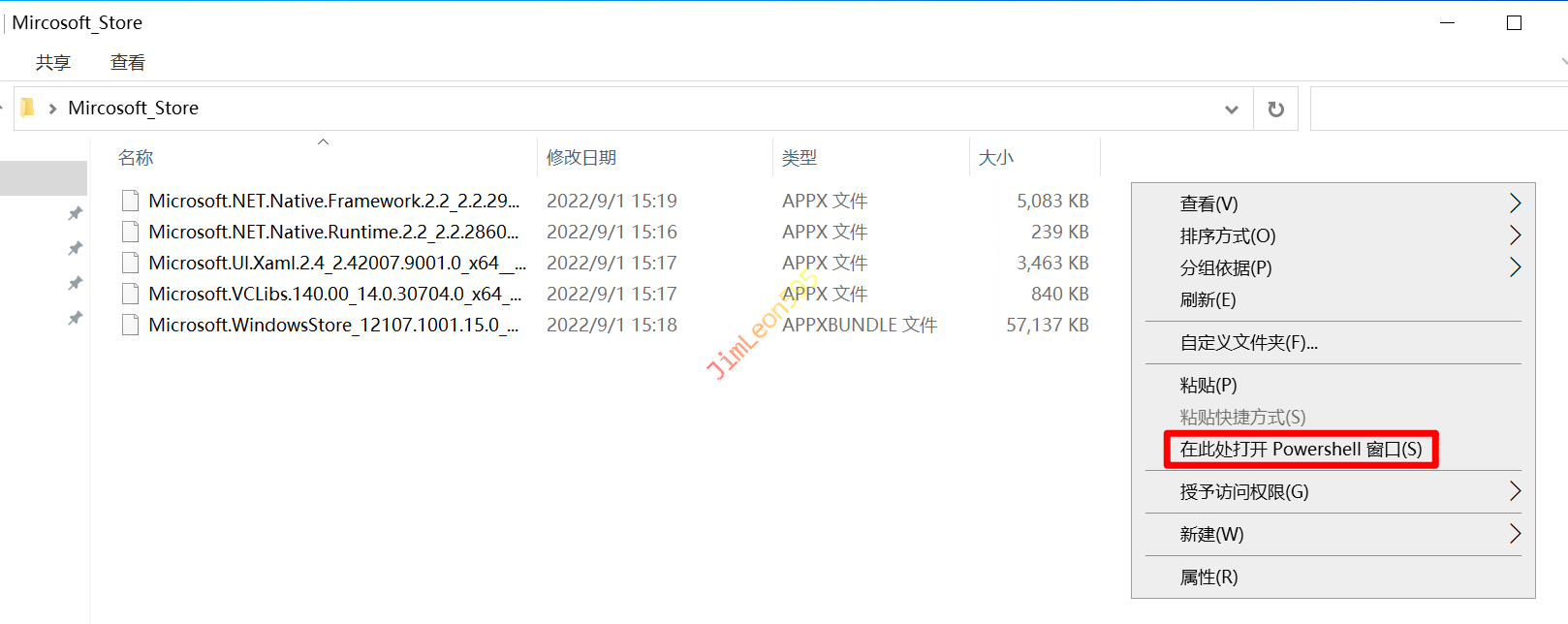
在下载目录中按住Shift + 右键
然后我们就可以打开 Powershell
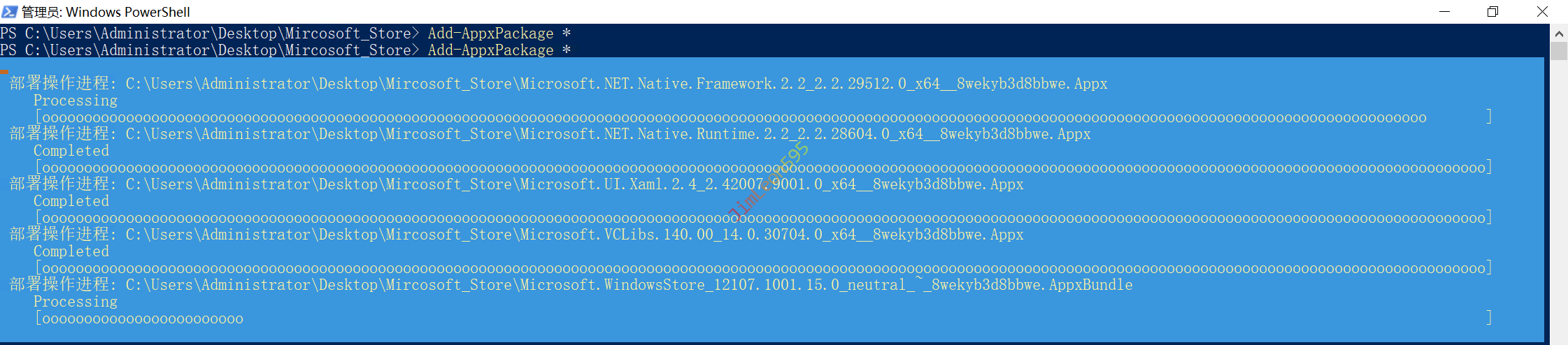
然后我们直接安装路径下所有软件包
1 | Add-AppxPackage * |
然后我们就能在 开始菜单 看到 Microsoft Store
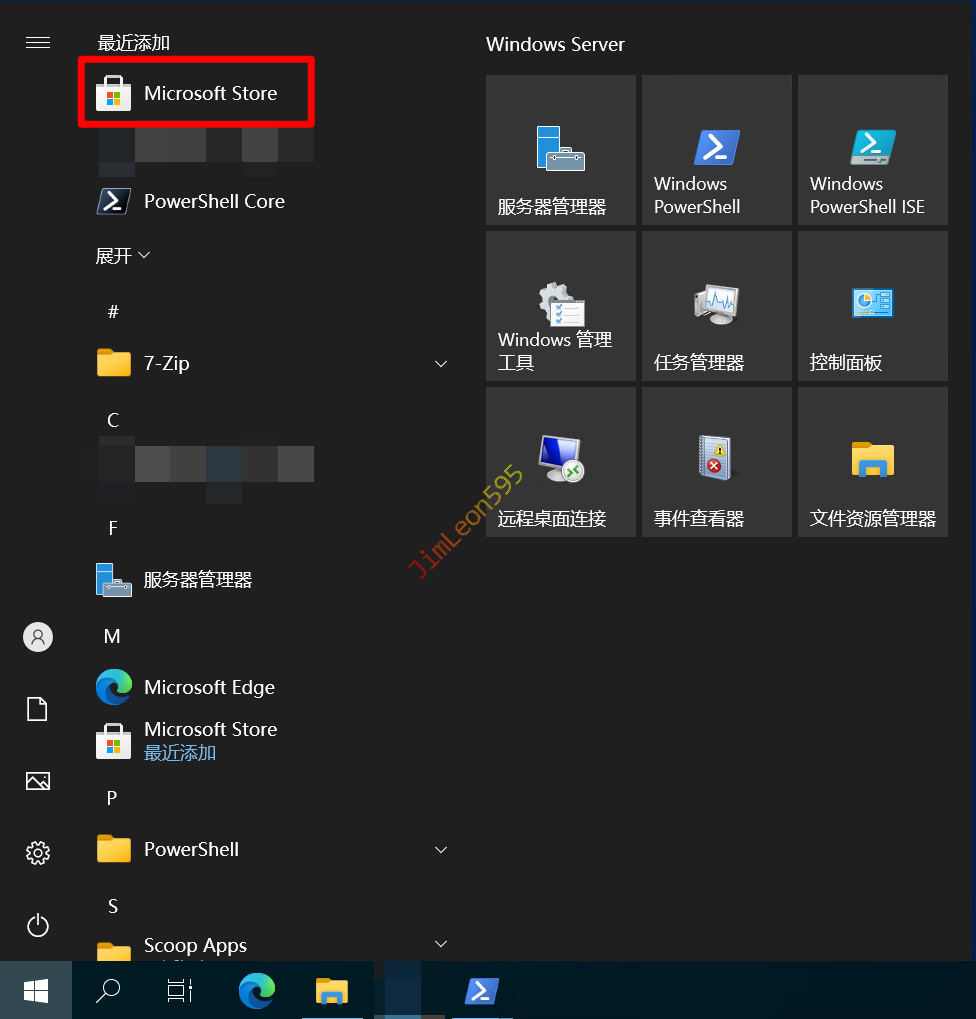
然后我们清空应用商店缓存
1 | WSReset.exe |
如果 Microsoft Store 出现白屏
那我们可以尝试重置 Microsoft Store
1 | Get-AppXPackage -AllUsers | Foreach {Add-AppxPackage -DisableDevelopmentMode -Register "$($_.InstallLocation)\AppXManifest.xml"} |
安装完成
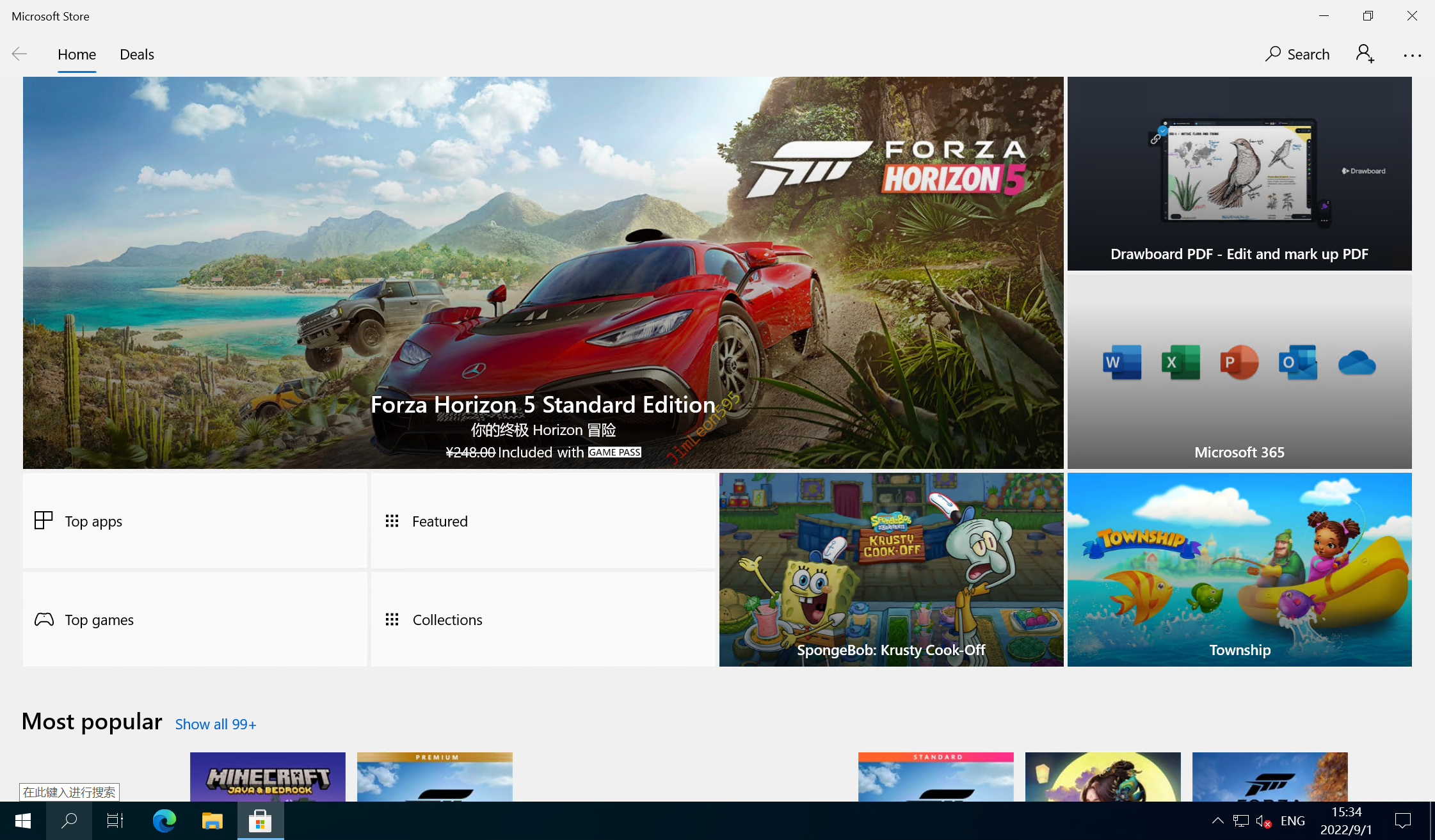
关闭自动更新
其中 12107.1001.15.0_neutral 可以免登录安装应用
所以我们可以关闭自动更新
1 | Get-AppxPackage *WindowsStore* |
本博客所有文章除特别声明外,均采用 CC BY-NC-SA 4.0 许可协议。转载请注明来源 JimLeon595!